YouTube Banner Maker: Create Channel Art
By: Kevin
Your YouTube banner is often the first visual cue a new viewer sees when they visit your channel. It needs to introduce your name and point of view while surviving a surprising number of crops. This free YouTube banner maker creates deterministic channel art at the exact upload size, with a preview that keeps the important information in view.
Type your channel name, add a tagline or upload schedule, then choose a lockup, palette and font. You can also add a photo from your device. The photo is decoded in your browser and is never uploaded or stored. When the design is ready, download a raster banner that YouTube can accept immediately.
Why YouTube banner safe areas matter
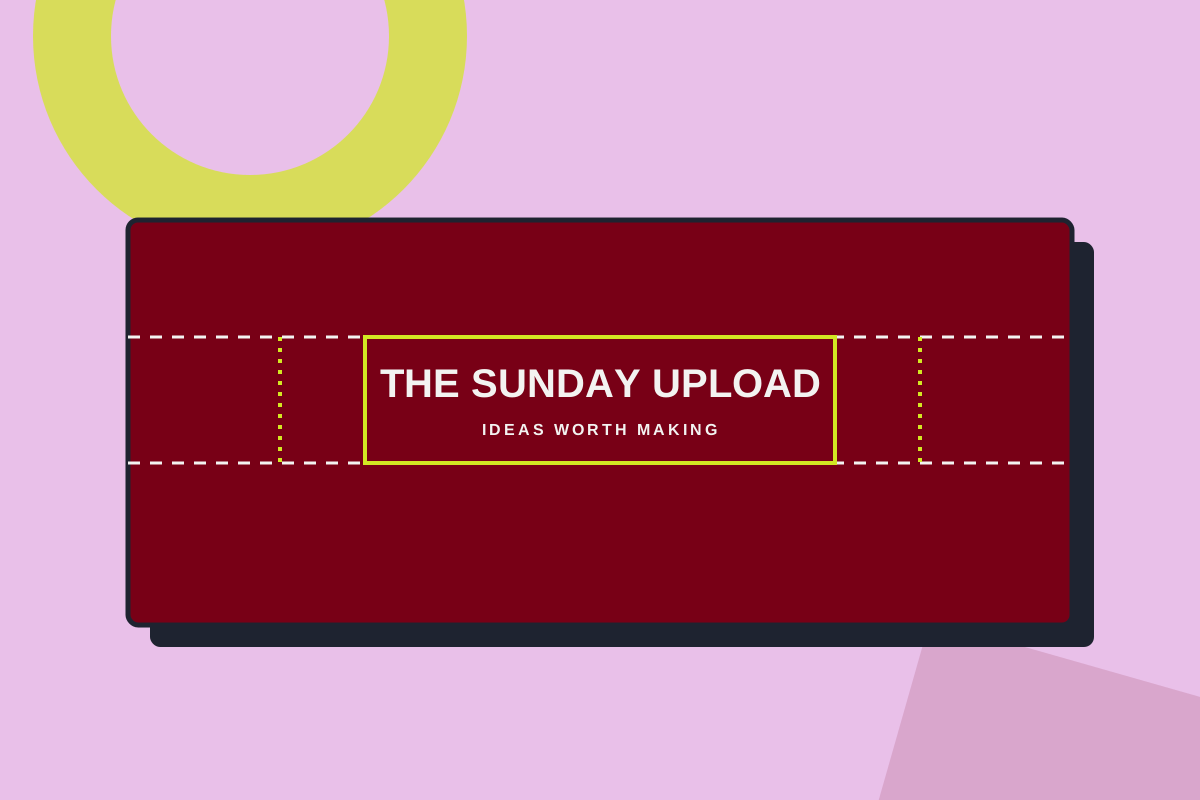
YouTube banners use one 2560 × 1440 upload canvas, but viewers do not all see that full frame. A television can show the entire image. Desktop shows a wide 2560 × 423 band, while tablet narrows that view to 1855 × 423. Mobile is the strictest crop: the central 1546 × 423 safe area is the dependable home for your channel name and supporting copy.
The preview overlays the desktop, tablet and central boundaries so you can see what each audience is likely to see. The TV frame is the full 2560 × 1440 canvas. Keep background texture and decorative shapes outside the safe area if you want, but keep the information viewers need to recognise your channel inside it.
Photo or flat artwork?
A photo gives a channel immediate atmosphere: a studio, landscape, kitchen or behind-the-scenes moment can explain your subject before anyone reads a word. Use a high-resolution JPG, PNG, WebP, HEIC or HEIF image up to 50 MB. The maker cover-fits it to the banner and lets you adjust its position and zoom without sending the file to a server.
Flat artwork is a dependable alternative when you want a graphic identity that works across every upload. Its solid palette is easy to match to thumbnails and profile images, and it exports as a crisp PNG. Photo banners use JPEG compression so the download stays below YouTube's 6 MB upload limit. If a design is still too large, simplify the photo or remove unnecessary detail rather than accepting a blurry result.
Make text legible at every crop
Keep the channel name short enough to scan quickly and use the tagline only when it adds useful context. Every layout fits text deterministically inside the central safe area, including names with wide glyphs and emoji. A schedule line works well for publishing routines, but it should never compete with the name.
Photos vary wildly in brightness, so photo mode can add a selectable scrim behind the type. The scrim gives the text a stable surface instead of asking viewers to read against a random sky, face or wall. Keep it on unless your photo already has a naturally quiet area behind the lockup. Custom colours also need a minimum 4.5:1 contrast ratio before the download is enabled.
Choose a banner layout
A centred lockup gives a balanced, traditional channel header. Left-aligned type leaves room for a subject or object on the right side of a photo. Name-with-rule adds a small graphic divider for a stronger editorial feel. Name-and-schedule makes the publishing rhythm part of the identity without leaving the safe area.
Pick a typeface with a point of view
Anybody is the default: a versatile sans serif that works for both compact names and long channel titles. Bebas Neue gives headlines a tall, condensed, poster-like presence. Space Grotesk feels geometric, clear and contemporary. All three are locally bundled under open licences, and the exported files are raster images, so font files never travel inside a download.
How to use this YouTube banner maker
- Enter the name viewers should remember.
- Add a short tagline and upload schedule when they help explain the channel.
- Choose a layout, palette and font, then watch the safe-area overlays.
- Add a photo if your channel benefits from a sense of place or personality.
- Keep the scrim on when type sits over a detailed or high-contrast photo.
- Download the 2560 × 1440 file and check it once on your channel before publishing.
A banner works best as part of a consistent channel system. Pair it with a recognisable avatar, clear thumbnails and an easy-to-find destination such as your Linktree. The banner should set expectations for your videos, not carry every detail about them. Give the most important words the most room, then let your content do the rest.
More free creator tools
Find your name, grow your reach and keep every profile connected.